Products · DLQ Manager · Compressed messages

A zipped order is still an order. Read it, find it, resend it as sent.

Some producers zip or gzip a large JSON - a 500 kB order, a full invoice - to stay under Service Bus's message size limit instead of moving to Premium. When such a message dead-letters, most tools show a wall of binary. DLQ Manager shows what the producer packed, finds values inside it in search, and resends the original compressed bytes, byte for byte.

Recognised, not guessed

Zip and gzip are recognised from the file's own first bytes the moment a message is captured - never from a label alone. Messages captured before this feature are recognised too.

Readable on demand

Open the message and see the JSON, XML or text inside, formatted for reading. It is unpacked in memory for that one view and never stored unpacked.

Searchable like plain JSON

Search for an order id, a customer email or an invoice number and it is found inside zipped and gzipped dead-letters, just as in plain messages.

Resent byte for byte

A resend sends the original compressed bytes and content type - not the unpacked JSON - one at a time or in bulk. The consumer receives the very file the producer sent.

The plain-JSON flow is unchanged

A text body never counts as compressed. The 99 % of messages that are plain JSON take exactly the same path, at exactly the same cost, as before - the extra work happens only for a compressed body.

1 · Spot it in the list

When a dead-letter's body is a compressed file, DLQ Manager marks the row with a chip - ZIP, GZIP and so on - so you see straight away which messages carry an archive, without opening any of them. The format is recorded as the message is captured, from the body's first bytes only: nothing is unpacked to put the chip there.

  • Kept exactly as it arrived. The archive itself is stored unchanged; the chip is a marker beside it.
  • Older messages too. Dead-letters captured before compression support are recognised when they are read.
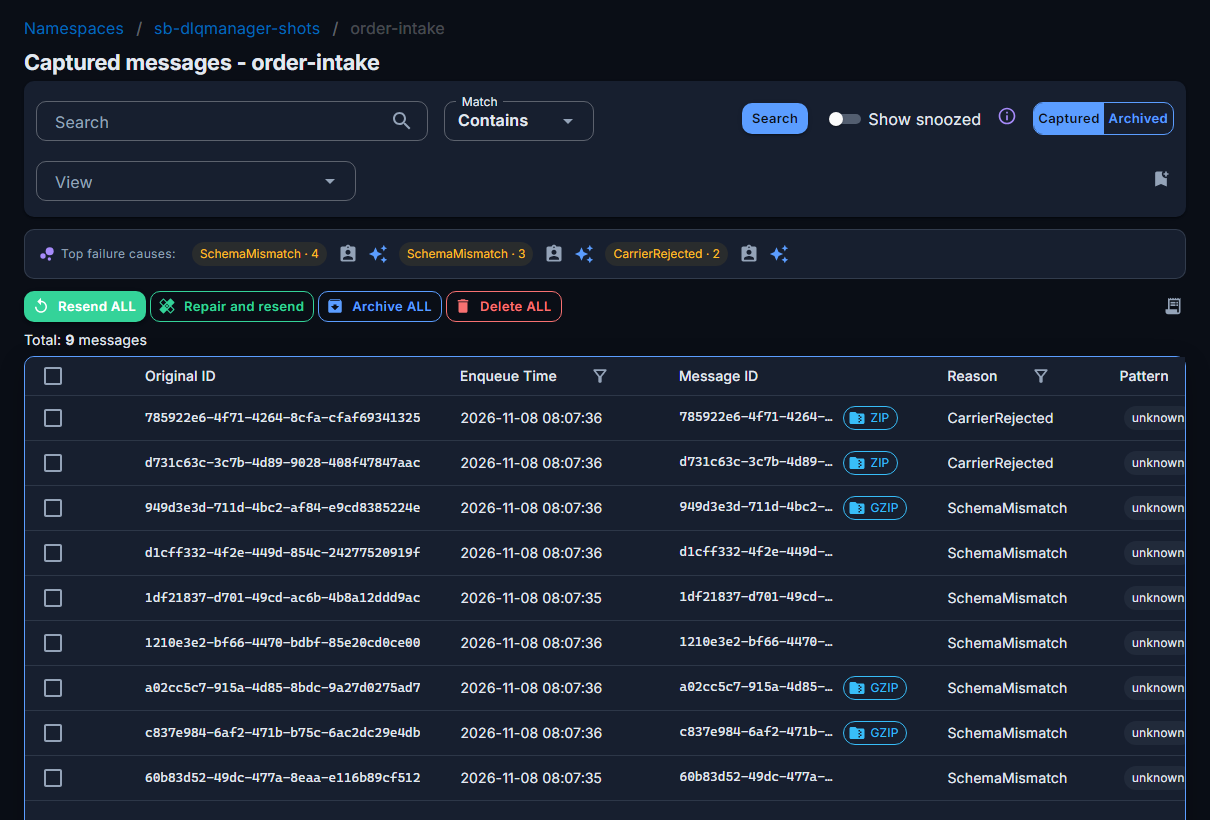
The Messages page for an orders queue: rows of captured dead-letters with their enqueue time, dead-letter reason and label, several of them marked with a GZIP or ZIP chip, the plain JSON rows without a chip
Step 1: the GZIP and ZIP chips show which dead-letters carry a compressed body, at a glance.

2 · Open it and read what the producer packed

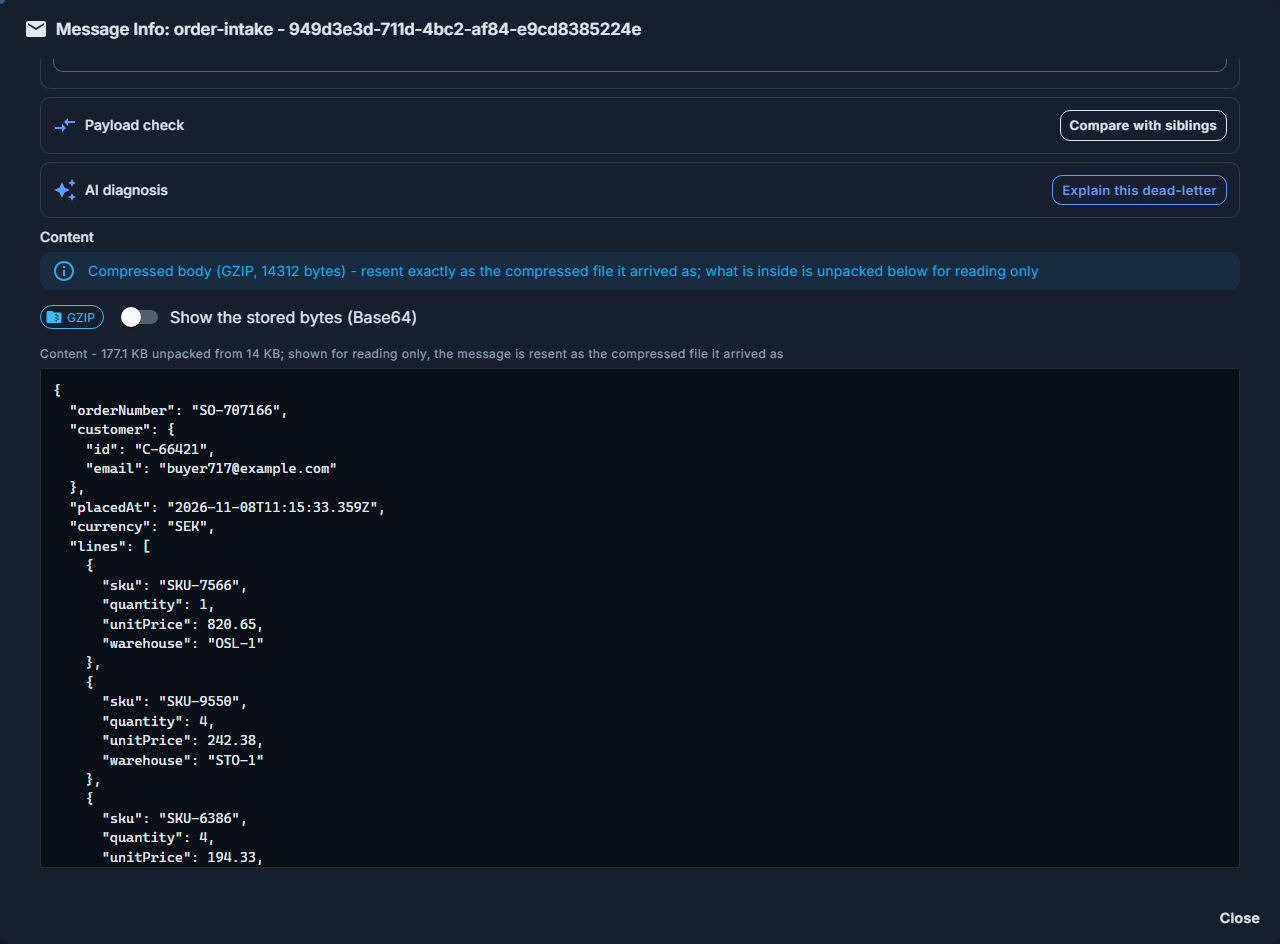
Open a compressed dead-letter and the details show what is inside - the JSON, XML or text, formatted for reading - with a banner that says the body is compressed and how. A gzip shows its original file name when the producer recorded one. The stored bytes are one switch away, so you can always see exactly what was captured.

  • In memory, for that view only. The content is unpacked when you open it and never stored unpacked.
  • Released and audited like any body. Viewing the content needs the same permission as reading any payload, and every view is recorded in the audit log.
  • Broken data is explained. A damaged archive gets a clear sentence about what could not be read, not an error page.
Message details for a gzipped order: a banner saying the body is a GZIP file with its original file name, the unpacked order JSON formatted below it with orderId, customer and order lines, and a switch to show the stored compressed bytes instead
Step 2: the compression banner, and the order JSON the producer gzipped - formatted for reading.

3 · Pick a file from a zip

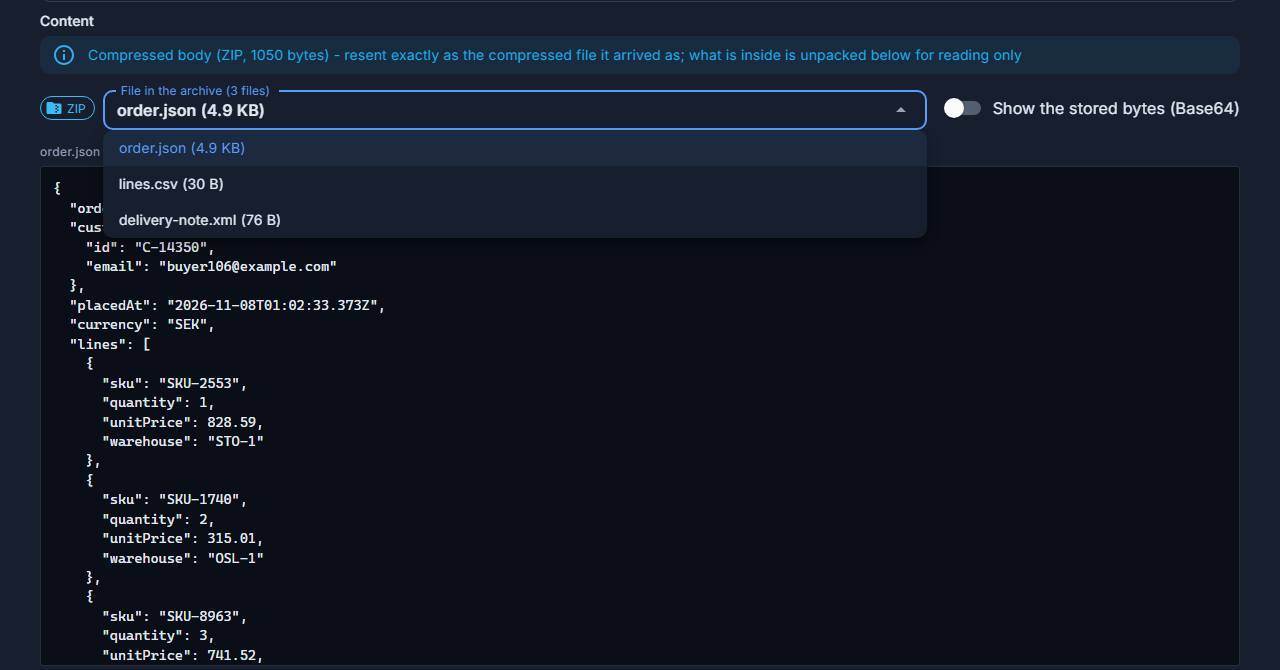
A zip can hold several files - an order and its attachments, a batch of invoices. The details list every entry with its name and size, and a picker opens the one you want. Password-protected entries and archives inside the archive are listed so you know they are there, but they are not opened.

  • Names are only names. Entry names are treated as display text; no path from inside an archive is ever used.
  • Bounded. At most 500 entries are listed and at most 4 MB of content is unpacked per view, within 5 seconds - content that would grow past that is cut off there, and the view says so.
Message details for a ZIP body holding several files: the entry picker lists each file with its name and size, one entry marked as password-protected and one as a nested archive, both listed but not opened; the selected order.json is shown formatted beside the list
Step 3: every entry of the zip with its name and size; pick one to read it.

4 · Find it with search

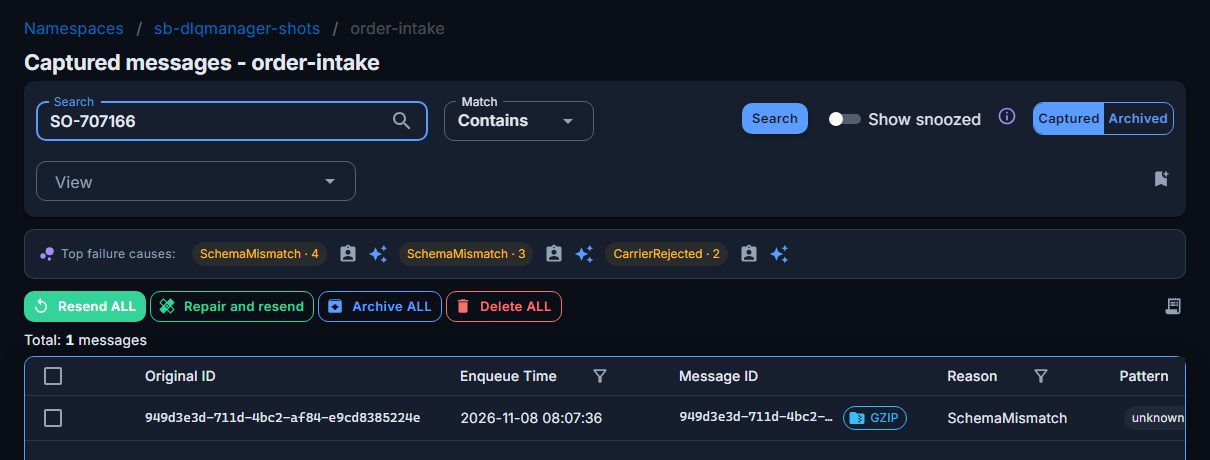
Search for an order id, a customer email or an invoice number and DLQ Manager finds it inside zipped and gzipped dead-letters, just as in plain JSON messages. As a compressed message is captured, the beginning of its content is read once, in memory, to build the same compact search index a plain message gets. Nothing unpacked is stored.

  • Fast by design. Reading for search is bounded per message: at most 256 KB of content, 50 entries and 250 milliseconds, so search stays fast however large the archives are.
  • Plain messages unchanged. A text body is indexed exactly as before, with the same search strings at the same cost. Search inside an archive applies to dead-letters captured from this release on; older compressed dead-letters are still read and resent, and found by their metadata.
The Messages page with an order id typed in the search box: the matching row is a dead-letter marked GZIP, found by a value inside its compressed body
Step 4: an order id found inside a gzipped dead-letter, like in any plain JSON message.

5 · Resend it exactly as it was sent

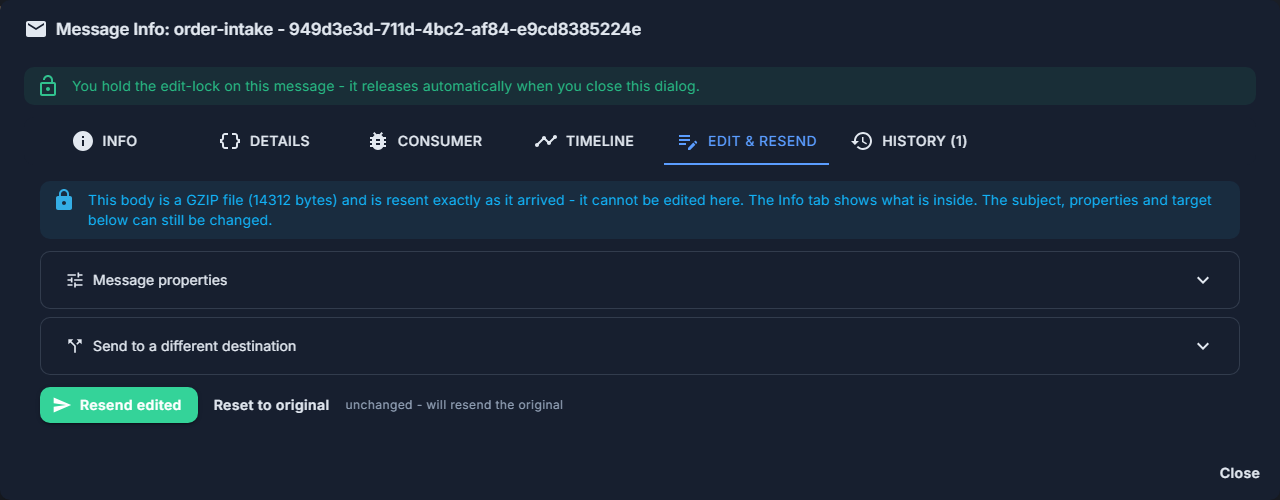
Reading the JSON is for you; the consumer gets the original. A resend sends the original compressed bytes and content type back to the queue or topic unchanged - one message, redirected to another entity, or in bulk. The Edit & Resend tab says so in one sentence and offers no editor over the bytes; the subject, properties, application properties and destination can still be changed before sending.

  • Every binary body, byte for byte. The same holds for any body that is not text - protobuf, Avro or any other format: what arrived is what is resent.
  • No guessing at binary content. A bulk resend that carries a payload edit leaves binary messages out, with the reason on their row, rather than guess at their contents.
The Edit and Resend tab of a gzipped dead-letter: a banner saying the body is a GZIP file of 14312 bytes that is resent exactly as it arrived and cannot be edited here, then the Message properties and Send to a different destination panels, and the Resend button with the note 'unchanged - will resend the original'
Step 5: the body is resent as the very file the producer sent; the envelope and destination can still change.

Every tab of a compressed dead-letter

The same message dialog as for any dead-letter - Info, Details, Consumer, Timeline, Edit & Resend and History - with the compressed body handled on each. Click a picture to see it full size.

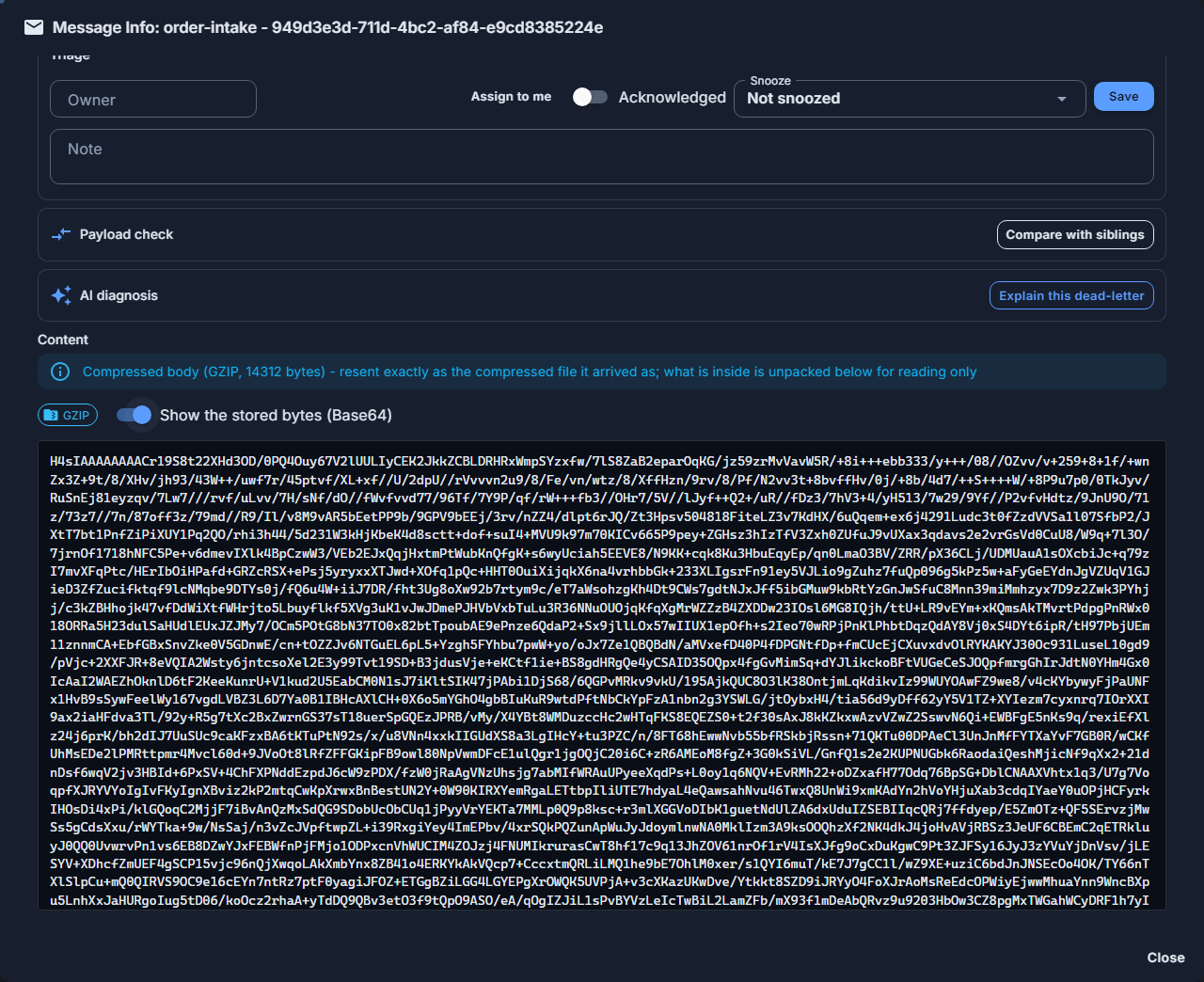
The Info tab of a gzipped dead-letter with the switch 'Show the stored bytes (Base64)' turned on: the banner says the compressed body is resent exactly as it arrived, and the stored bytes are shown as Base64 below
Info: one switch shows the stored bytes exactly as captured, as Base64.
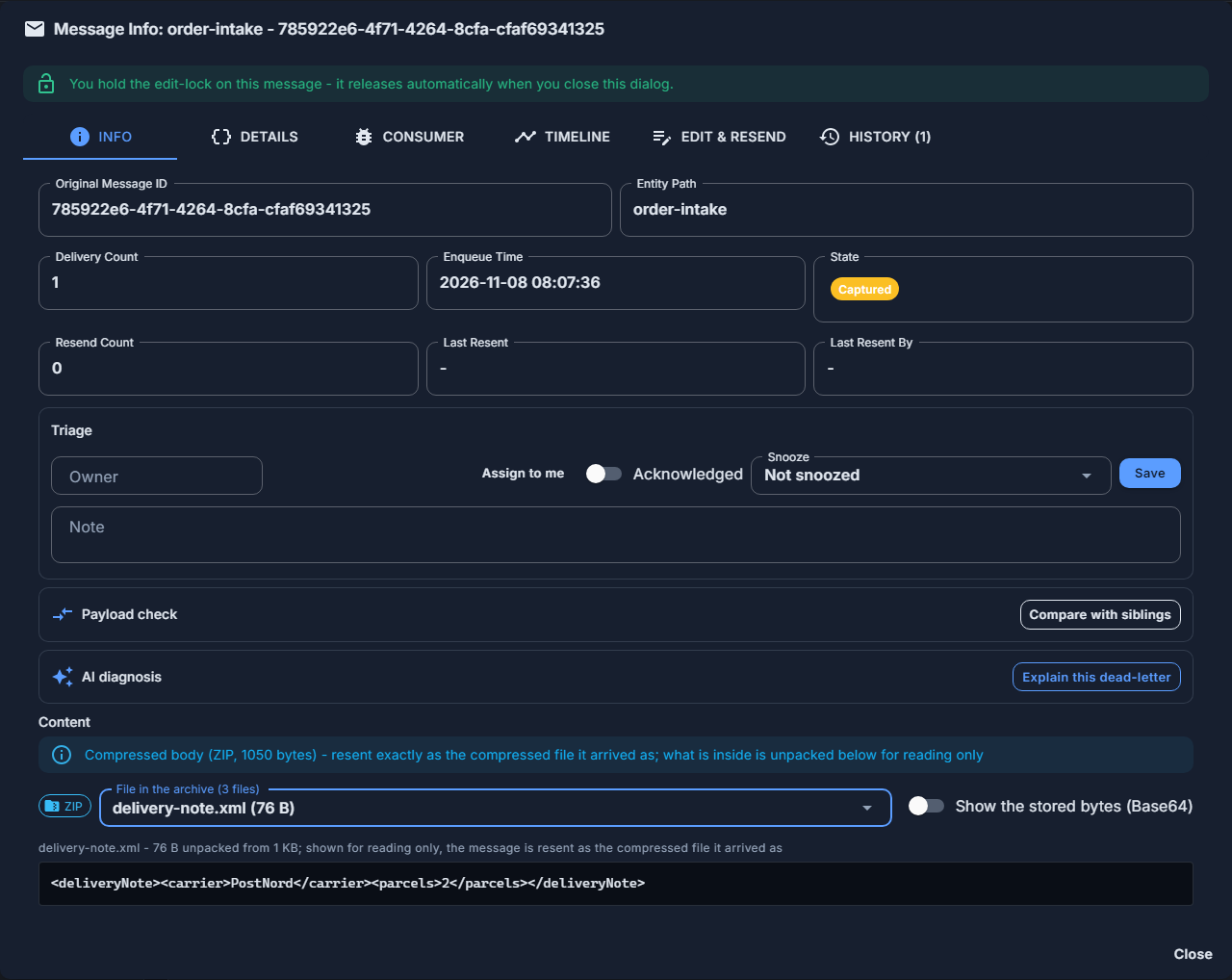
The Info tab of a ZIP dead-letter with three files: the picker shows delivery-note.xml (76 B) selected, with a caption that it was unpacked from 1 KB for reading only, and the XML content below
Info: an XML file picked from a zip - any entry, any text format.
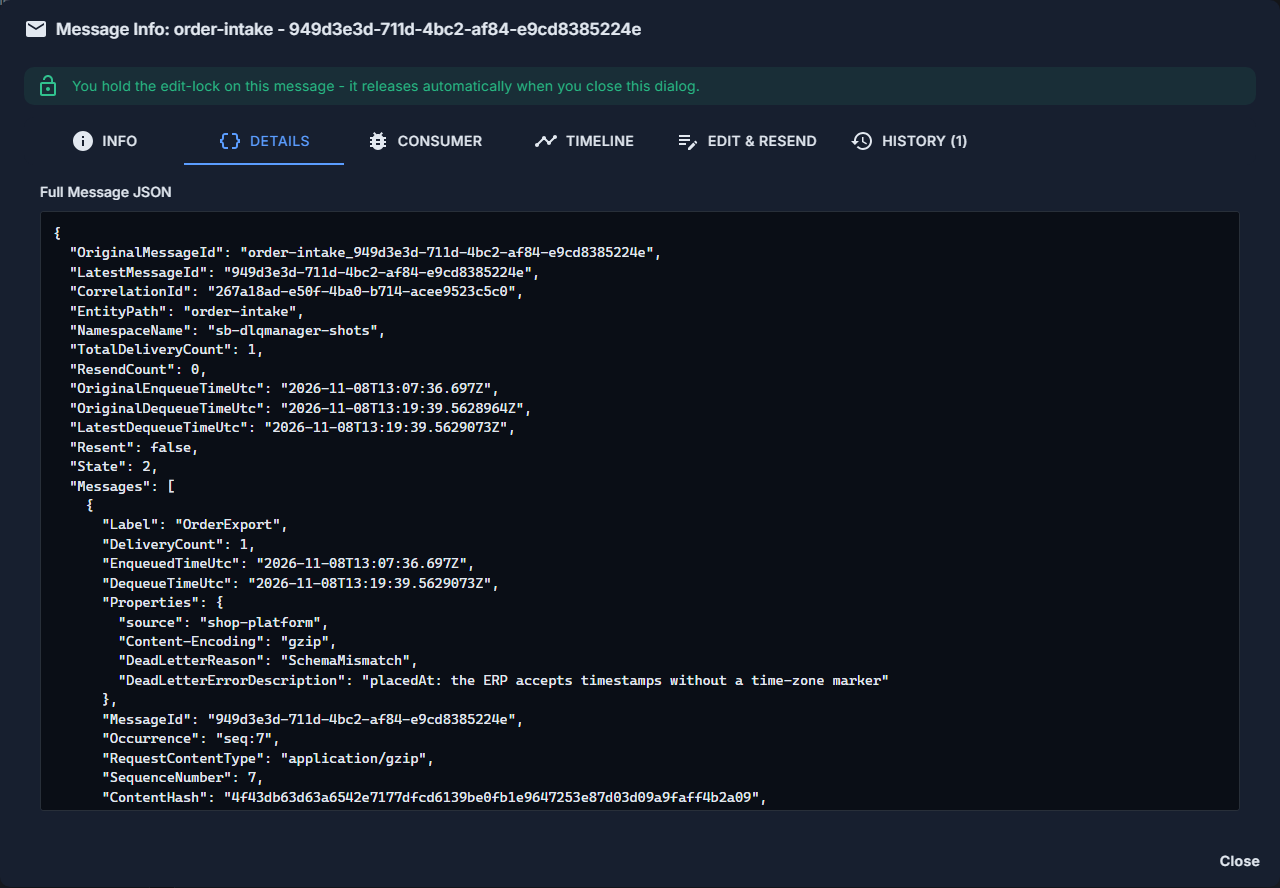
The Details tab: the full capture record as JSON - message ids, entity, delivery counts and times, and the properties the producer set, including Content-Encoding gzip and the dead-letter reason
Details: the whole capture record, including the Content-Encoding the producer declared.
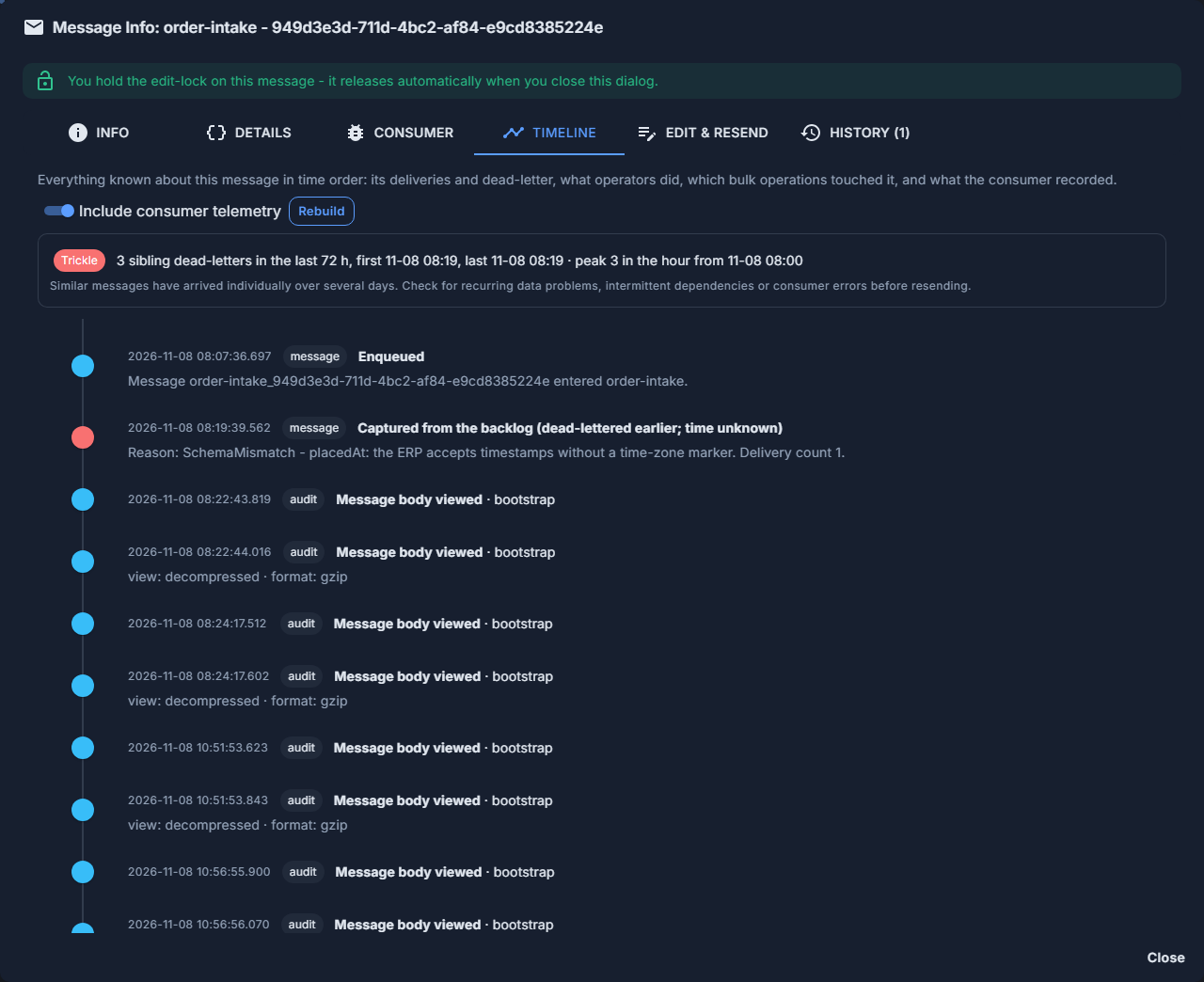
The Timeline tab: a Trickle chip with sibling counts, then the message enqueued, captured with its dead-letter reason, and each audited view of its body, the decompressed views marked 'view: decompressed · format: gzip'
Timeline: every view of the unpacked content is on record, with its format.
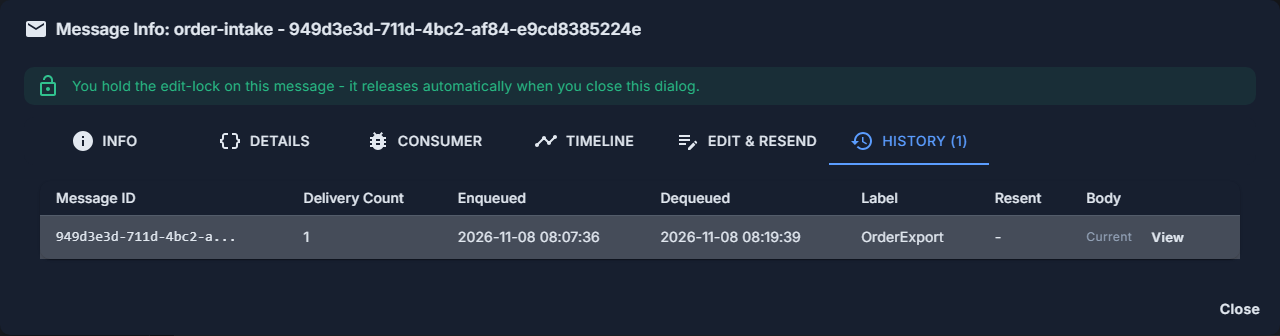
The History tab: one delivery of the message with its id, delivery count, enqueue and dequeue time and label OrderExport, marked as the current view
History: each delivery of the message, as for any dead-letter.

The Consumer tab reads the consumer's own exception from your Application Insights when the namespace - or that queue or subscription - names the workspaces its consumers report to; the same for compressed and plain messages.

Supported formats

Zip and gzip carry a reliable signature in their first bytes. Brotli and deflate do not, so they are recognised when the producer declares them.

FormatHow it is recognisedWhat you seeResend
zip Its first bytes, always ZIP chip; every entry listed with name and size, the one you pick shown formatted; searchable Original bytes, unchanged
gzip Its first bytes, always GZIP chip; the content shown formatted, with its original file name; searchable Original bytes, unchanged
7z Its first bytes Recognised and named in the list; not opened Original bytes, unchanged
RAR Its first bytes Recognised and named in the list; not opened Original bytes, unchanged
brotli When the producer declares it, in the content type or a Content-Encoding property The content shown formatted Original bytes, unchanged
deflate When the producer declares it, in the content type or a Content-Encoding property The content shown formatted Original bytes, unchanged
Other binary (protobuf, Avro, ...) Any body that is not valid text The stored bytes, with their size Original bytes, unchanged

Limits and safety

  • The plain-JSON flow is unchanged: a text body never counts as compressed and costs nothing extra.
  • Nothing unpacked is ever stored - not for viewing, not for search.
  • Viewing is bounded: at most 4 MB of content, 500 entries and 5 seconds per view; an archive built to grow past that is cut off and the view says so.
  • Search reading is bounded per message: 256 KB of content, 50 entries, 250 milliseconds.
  • Password-protected entries and archives inside archives are listed, never opened; entry names are display text only, and no path from an archive is ever used.
  • Every view of the content needs payload permission and is recorded in the audit log.
  • A resend - single or bulk - sends the original compressed bytes.

Read the what's new stream for each step as it shipped. Encrypted bodies are covered by encrypted messages - and a decrypted body that turns out to be zip or gzip is unpacked the same way.

Your zipped dead-letters, readable.

Connect a namespace and open your own compressed dead-letters - free for 30 days.